
How to Query Your Company Knowledge Base with Claude or Copilot
Three ways to connect Claude or Microsoft Copilot to your company knowledge base, from local files to Obsidian to a managed MCP connection.

There are three practical ways to query your company knowledge base from Claude or Microsoft Copilot: point the assistant at files directly, maintain a local knowledge base in a tool like Obsidian, or connect a managed knowledge base over MCP. They differ a lot in how well they scale, whether your team can share them, and how much upkeep they demand.
This guide walks through all three, with an honest view of where each one breaks down, and a full setup walkthrough for the MCP route.
Key takeaways
- Attaching files to a chat works for one-off questions but falls apart on large files, repeated use, and questions that span many documents.
- A local Obsidian vault adds structure that AI assistants navigate well, but it stays personal: no team access, no permissions, and your real documents live elsewhere.
- Connecting a managed knowledge base over MCP gives Claude, Copilot, and other assistants server-side search with citations, so only the relevant passages ever enter the context window.
- With QX Knowledge, vaults sync from SharePoint, Google Drive, Notion, and Granola on a cadence you set, with team permissions built in. Files never have to move.
Why connect your knowledge base to an AI assistant?
Claude and Copilot are strong general reasoners, but they know nothing about your company: your accounts, policies, research, or the deal you closed last quarter. Every useful answer about your business depends on getting the right internal context in front of the model at the right time.
You can do that by hand, pasting documents into every chat. Past a handful of files, though, you want the assistant to find the right material itself and cite where each answer came from. How you set that up is the whole game. (For the underlying mechanics, see our explainer on MCP vs RAG.)
Option 1: Point Claude at your files directly
The naive approach: attach documents to a chat, or give Claude Desktop access to a local folder, and ask away.
For a quick question about one contract or one report, this is genuinely fine. It needs no setup and no new tools.
It stops being fine quickly:
- Large files exhaust the context window. The assistant reads everything you hand it, so a few long PDFs crowd out room for actual reasoning, and answers degrade.
- It's slow and wasteful. Every conversation re-reads the same documents from scratch. You pay in latency (and tokens) each time.
- You are the retrieval system. Each new chat starts blank, so you're forever re-attaching files and remembering which document holds what.
- Domain-wide questions perform poorly. "What do we know about churn across our accounts?" needs dozens of files. An assistant reading raw attachments can't cover that ground.
- None of it is shared. Your colleague asking the same question tomorrow starts from zero.
Option 2: Build a local knowledge base in Obsidian
A step up, and a well-documented one: keep your notes as linked markdown files in an Obsidian vault, then let Claude read the vault through file access or one of the community MCP servers built for it.
This genuinely helps. Markdown is a format models handle well, and Obsidian's links and folder structure give the assistant a map, so it navigates between related notes instead of guessing. Domain-wide questions improve because the structure itself carries information.
But the ceiling is low:
- The context problem remains. The assistant is still reading whole files into its window; structure delays the limit rather than removing it.
- It doesn't scale. A few thousand notes is workable. A company's document estate is not.
- It's personal by design. An Obsidian vault lives on your machine. There's no team access, no enterprise security, and no permissions model.
- You can't scope access. There's no way to tell the assistant "use only the client-facing slice of this knowledge base" for a given task.
- It's a second copy. Your real documents live in SharePoint or Google Drive. A local vault means moving or duplicating content, and keeping it current is on you.
Obsidian is an excellent personal notes tool. As a company knowledge base for AI assistants, it's a workaround.
Option 3: Connect a managed knowledge base over MCP
The third approach moves the hard part (indexing, search, permissions) to a server, and gives your assistant a search tool instead of raw files. The assistant sends a query over MCP, the knowledge base does semantic search across everything you've indexed, and only the relevant passages come back, with citations to the source files.
That single change fixes every problem above at once. Context stays small no matter how large the corpus grows. Nothing gets re-read per chat. Domain-wide questions work because search covers the whole index. And because the knowledge base is a service rather than a folder, your whole team queries the same one, under permissions.
Here's the full setup with QX Knowledge, which takes a few minutes.
Step 1: Create a vault and connect your sources
In QX, open Knowledge and create a vault. A vault is one queryable knowledge base; most teams run several, one per domain, like research, meeting notes, or marketing materials.
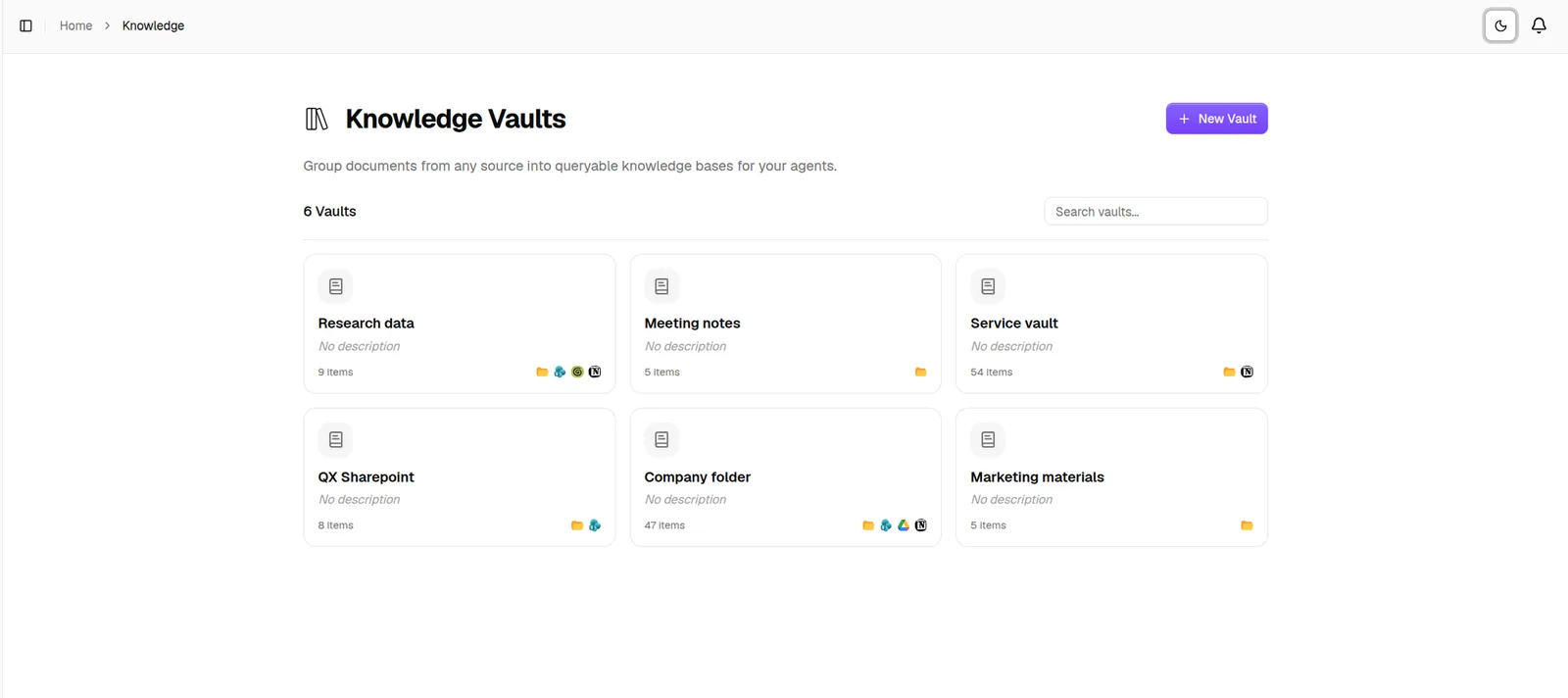
Then add files. You can sync folders straight from SharePoint, Google Drive, Notion, or Granola, or drag files in manually. Synced sources re-index on a cadence you choose, so the vault tracks the source of truth instead of becoming a stale copy. Your files stay where they are.
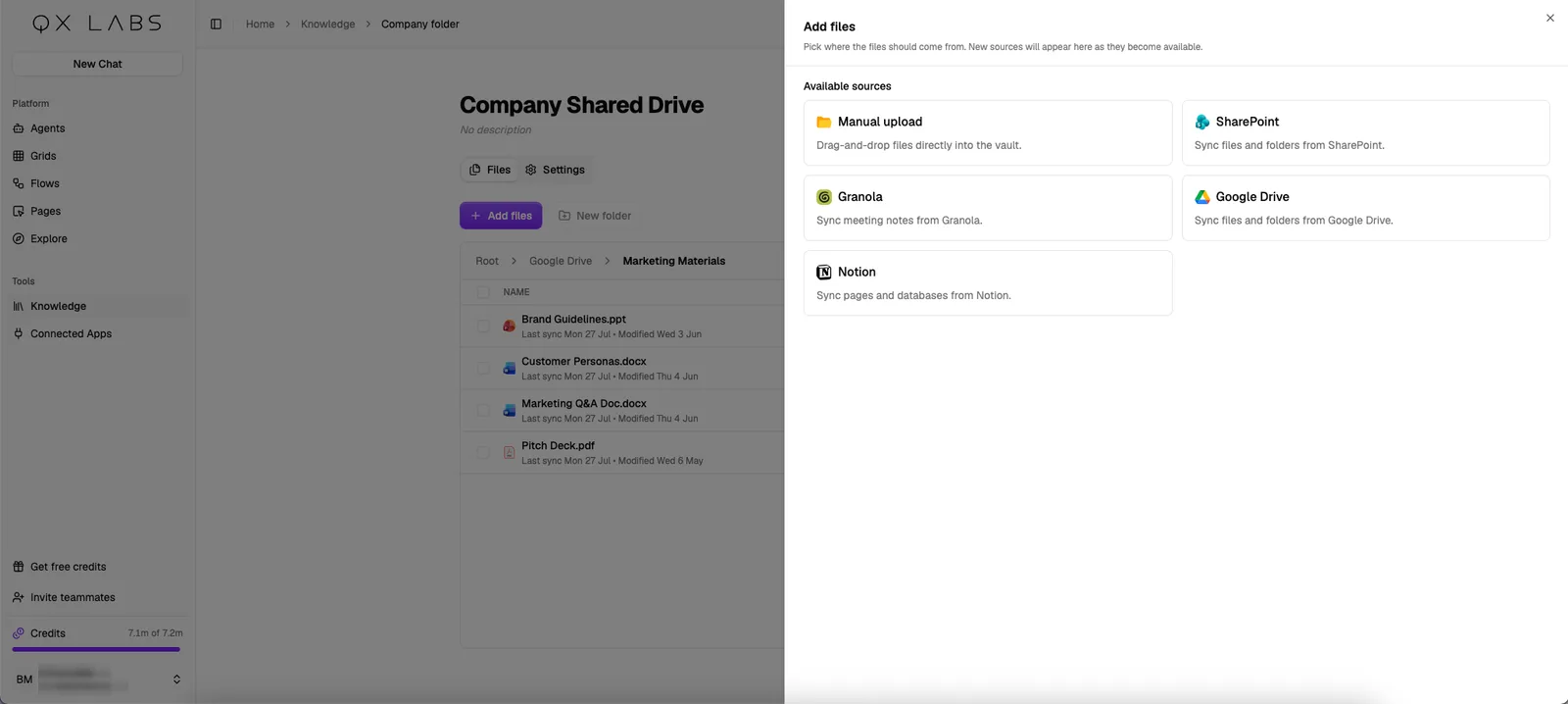
Vaults are private to you by default. Share one with your whole organisation or with specific people, and it becomes the team's shared, permissioned knowledge base.
Step 2: Add the connector in Claude
In Claude (web or desktop), go to Settings, then Connectors, then "Add custom connector". Name it and paste the QX Knowledge MCP URL:
https://app.qxlabs.com/api/mcp/knowledge
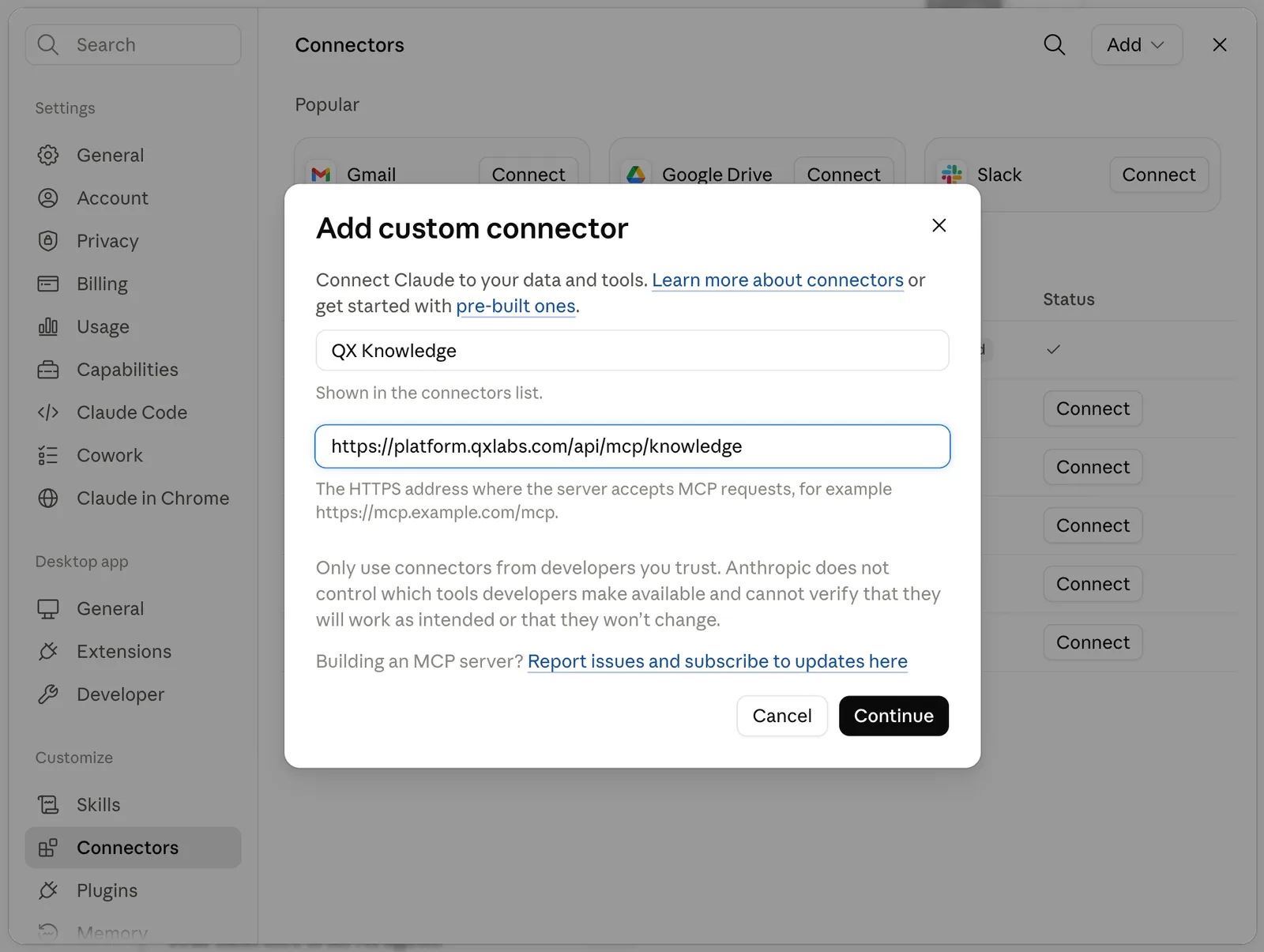
Custom connectors are available on paid Claude plans. If you work in the terminal, Claude Code connects with one command:
claude mcp add --transport http qx-knowledge https://app.qxlabs.com/api/mcp/knowledge
Step 3: Choose what Claude can see
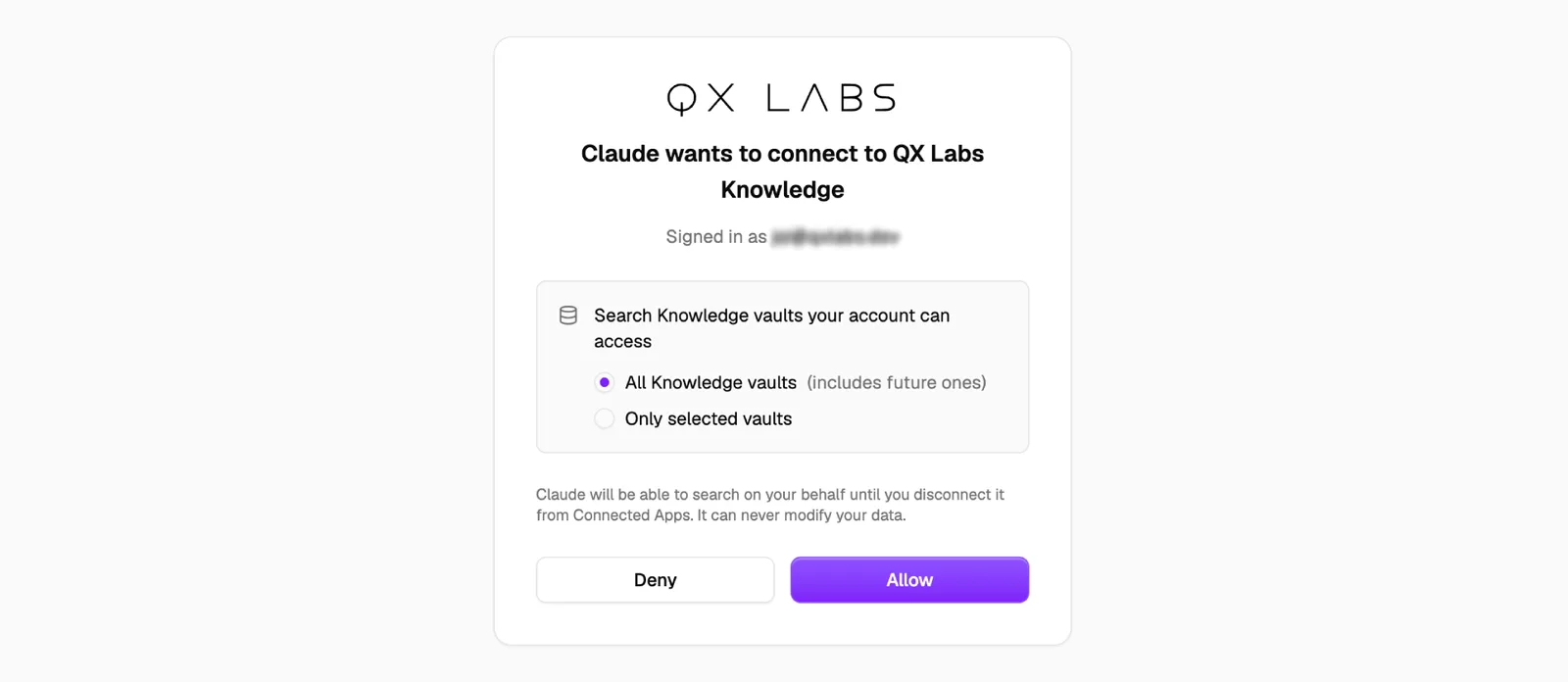
Clicking Connect opens a standard OAuth sign-in with your QX account. You choose whether Claude can search all your vaults (including future ones) or only the vaults you select. This is the scoping that local approaches can't do: your assistant sees exactly the slice of company knowledge you decide, and access is read-only. You can revoke it at any time from QX.
Step 4: Ask questions
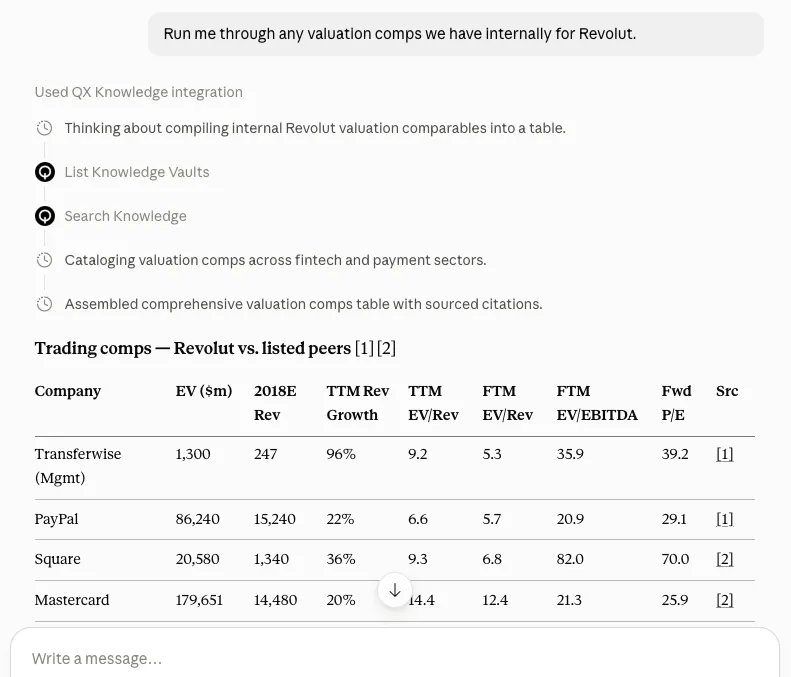
That's the whole setup. Claude now searches your company knowledge on its own whenever a question calls for it, and answers with citations back to the source documents.
Does this work with Microsoft Copilot?
Yes. In Copilot Studio, add a new tool, choose Model Context Protocol, enter the same server URL, and pick OAuth 2.0 with dynamic discovery. Authorise with your QX account and Copilot gets the same scoped, cited search. Cursor and any other MCP-capable client connect the same way; the MCP setup docs have per-client instructions.
Which approach should you use?
| Local files | Obsidian vault | QX Knowledge over MCP | |
|---|---|---|---|
| Setup effort | None | Ongoing curation | A few minutes, once |
| Large document sets | Fails fast | Limited | Designed for it |
| Domain-wide questions | Poor | Fair | Strong |
| Stays in sync with source | Manual | Manual | Automatic, on your cadence |
| Team access & permissions | None | None | Org or per-person sharing |
| Scope what the AI sees | No | No | Per-vault |
| Citations to sources | No | Partial | Yes |
| Works in | One chat | Your machine | Claude, Copilot, Cursor, any MCP client |
To be fair to the simpler options: if your "knowledge base" is five documents only you care about, attach the files and move on. If you already keep meticulous personal notes in Obsidian, that habit is worth keeping. The managed approach earns its place when the corpus is large, the answers need to be trustworthy, or more than one person needs them.
FAQ
What is MCP?
The Model Context Protocol is an open standard that lets AI assistants use external tools and data sources. A remote MCP server, like QX Knowledge, exposes capabilities (here: searching your vaults) that any compatible assistant can call. One server works across Claude, Copilot, Cursor, and others, which is why it has become the standard way to connect company data to AI tools.
Is my data used to train AI models?
No. QX doesn't train models on your content, and our AI providers operate under no-training terms for QX traffic. The MCP connection itself is read-only: assistants can search, never modify. Details are on our security page.
Do my files have to move?
No. Vaults index content where it lives, in SharePoint, Google Drive, or Notion, and re-sync on a schedule you control. Deleting the sync or revoking the connector cuts off access immediately.
What does it cost?
Knowledge Vaults are included on every QX plan, including the free plan, with usage metered in credits. See pricing for details.
If you want to try the full loop, create a vault, point it at a folder your team actually uses, and connect Claude. The first cited answer out of your own documents makes the difference between the three approaches obvious.
See what AI agents can do for your team
Deploy agents that can act across your data and 1,000+ apps.